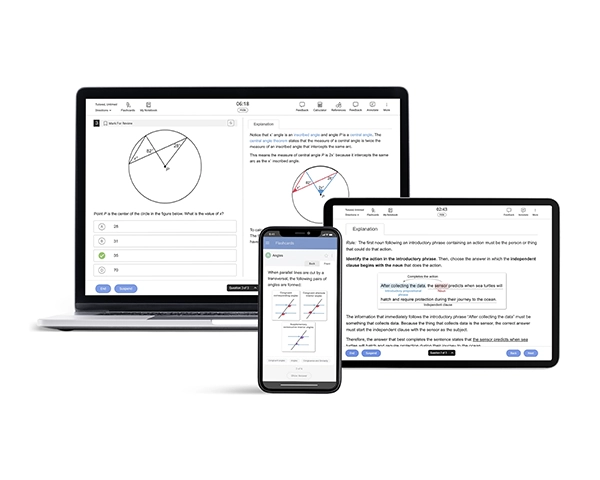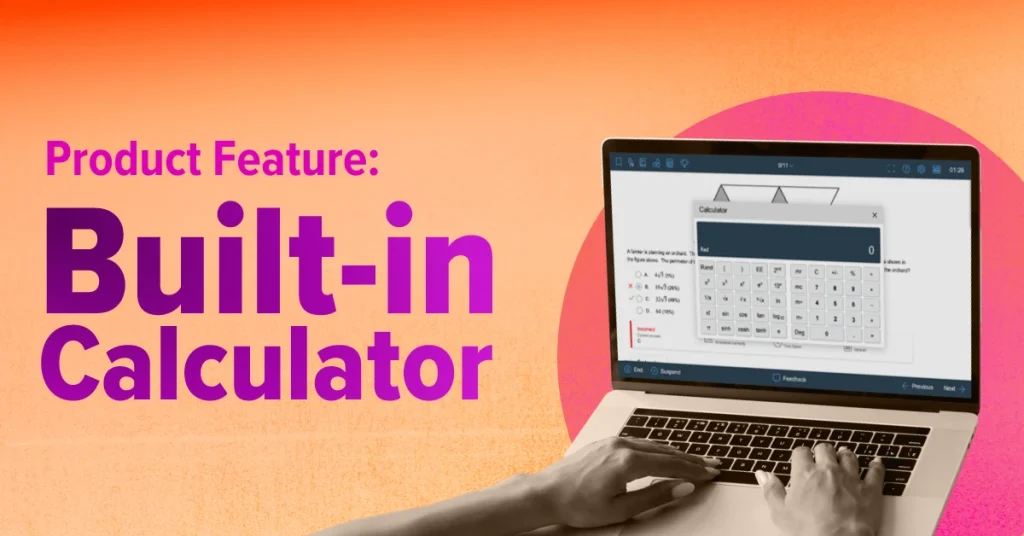
What is the Digital SAT Calculator?
The Digital SAT includes a full graphing calculator built directly into the testing platform for the math section. Powered by Desmos-style features, it lets you graph functions, evaluate expressions, explore tables, check work, and solve equations without switching to a physical device. You open it with a single click, and it stays available on every math question throughout the test.
Think of it as having a smart, reliable calculator that is always on your screen, ready the moment you need it. For many students, this becomes one of the most helpful SAT tools because it removes the stress of choosing the right handheld calculator or worrying about running out of battery.
Calculator Policy
The College Board® allows calculator use throughout the entire Math section of the Digital SAT, but only under specific rules. Understanding the SAT Calculator policy early helps you avoid surprises on test day and plan your practice effectively. Whether you are self-studying or following a comprehensive SAT Course, knowing these permissions ensures that your preparation aligns with the real testing environment.
On the Digital SAT, you are permitted to use:
- The built-in graphing calculator available inside the BluebookTM testing app
- An approved handheld calculator that meets SAT calculator guidelines
You are not allowed to use phones, tablets, laptops, smartwatches, or any device that can connect to the internet or communicate with other devices. Any calculator with texting, recording, or wireless features is also prohibited. Besides, there are several testing policies that you must adhere to.
Here's where the built-in Desmos-style calculator comes in, from start to finish, and works consistently across all testing devices. Several students choose to rely entirely on the Digital SAT Calculator and practice with it during preparation. Doing so ensures that what you use during practice matches exactly what you will see on test day, which reduces stress and helps you work more efficiently under time pressure.
Digital SAT Built-In Calculator Features and Functions
The built-in Digital SAT calculator is more than just a place to punch in numbers. It is a fully featured Desmos-powered tool designed to handle almost every type of math question you will encounter on the exam. Once you understand what it can do, you can use it strategically, rather than treating it like a basic calculator. Here are the key features and functions you should know before test day:
Performing Basic and Scientific Calculations
The Digital SAT built-in calculator functions like a powerful scientific calculator, handling both basic and advanced calculations quickly and accurately. Along with arithmetic, it supports fractions, exponents, square roots, absolute values, and trigonometric expressions that appear in SAT math questions. You can also substitute values directly into expressions to compute results efficiently.
Graphing Equations and Functions
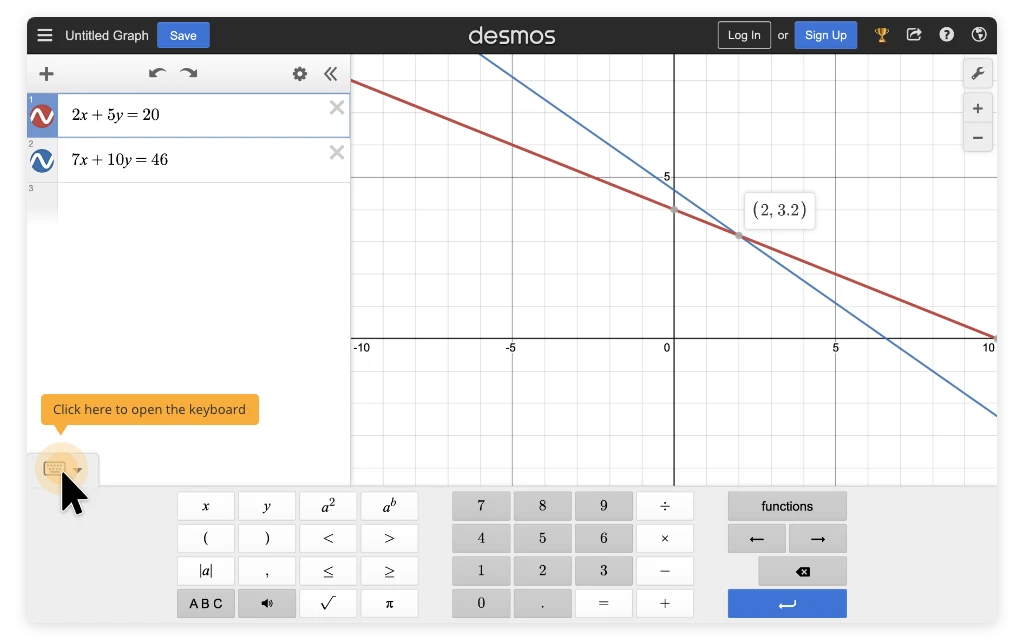
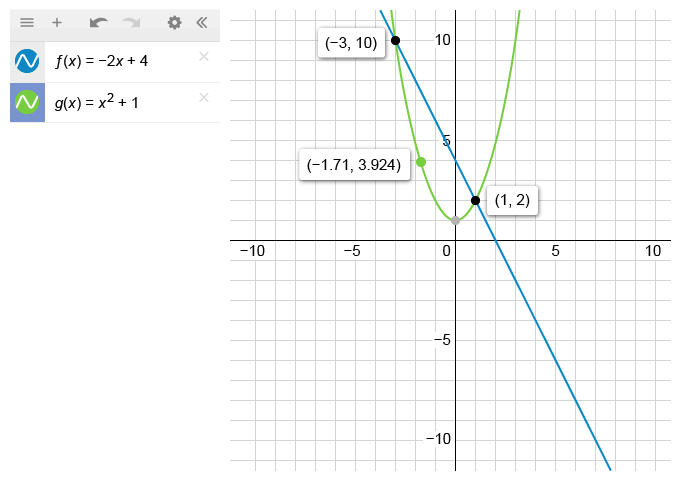
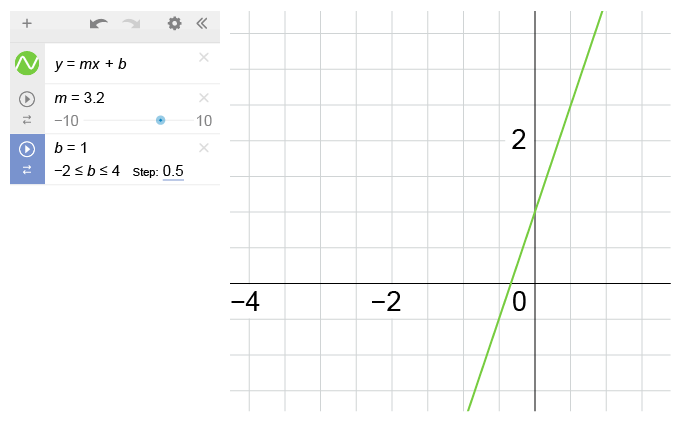
Graphing allows you to visually see how an equation behaves instead of relying only on algebra. By entering an equation, you can immediately view its graph and understand key features like intercepts, direction, and overall shape. This is especially helpful for linear and quadratic equations, which appear often on the SAT. Graphing can also make it easier to compare equations or estimate solutions by examining where the graphs intersect.
Plotting Points and Visualizing Relationships
The calculator also lets you plot individual points on a coordinate plane, which helps make coordinate-based questions easier to interpret. Seeing points visually can clarify where they lie and how they relate to a graph or to other points. This is useful for checking whether a point satisfies an equation or understanding geometric relationships.

Using Tables to Explore Values
Tables show how the output of a function changes as the input changes, all in one place. By generating a table, you can quickly view multiple values without having to calculate each one manually. This is helpful for questions that ask about specific function values, patterns, or rates of change. Tables make it easier to compare inputs and outputs side by side, especially when a problem involves multiple values.
How to Use the Built-In Calculator on the Digital SAT
Knowing that the Digital SAT includes a powerful built-in calculator is helpful, but the real advantage comes from knowing how to use it smoothly during the test. This section focuses on practical, test-day usage, allowing you to interact with the calculator confidently without losing time or focus.
Opening and Managing the Calculator During the Test
The built-in calculator is available directly within the Digital SAT testing interface. You can open it by clicking the calculator icon whenever you are working on a Math question. Once opened, the calculator appears alongside the question, allowing you to read the problem and calculate simultaneously.
The built-in calculator is most useful when calculations are time-consuming, numbers are complex, or visual tools like graphs and tables can simplify the problem. It works exceptionally well for function questions, systems of equations, and problems that involve interpreting relationships or data.
It is best to open the calculator only when you need it. Keeping it closed for simple questions helps reduce screen clutter and holds your attention on the problem. When you do use it, avoid unnecessary resizing or repositioning, as minor adjustments can add up to lost time during the section.
Step-by-Step: Using the Digital SAT Built-In Calculator
This walkthrough guides you on how to interact with the SAT built-in calculator, regardless of the type of math problem you are solving.
- Step 1 - Read and Decide: Before opening the calculator, make sure you understand what the question is asking. Decide whether you need to calculate a value, graph an equation, generate a table, or verify an answer.
- Step 2 - Open the Calculator Panel: Click the calculator icon in the test interface. The Desmos-based calculator opens in a panel while the question remains visible.
- Step 3 - Choose the Right Input: Decide what you need to enter based on the question, such as a numerical expression to calculate a value, an equation to create a graph, or enter a function to generate a table of values.
- Step 4 - Enter the Math Carefully: Use parentheses, exponents, and symbols exactly as needed. Double-check signs and grouping before moving on, since most calculator errors come from incorrect input rather than incorrect reasoning.
- Step 5 - Read the Output and Apply It: The calculator displays a result, graph, or table immediately. Use that output to answer the specific question being asked, rather than relying solely on the calculator result.
Built-in Desmos Calculator vs Handheld Calculator on the Digital SAT
On the Digital SAT, you can choose between using the built-in calculator or bringing an approved handheld calculator. Both options are allowed, but they offer different experiences on test day. Understanding the key differences can help you determine which option best suits your testing style and preparation habits.
| Aspect | Built-In Digital SAT Calculator | Handheld Calculator |
|---|---|---|
| Availability | Available directly inside the Digital SAT testing platform for all Math questions | Must be brought from home and approved under the SAT calculator policy |
| Setup Required | No setup needed. Opens instantly with one click | Requires bringing the device, checking batteries, and ensuring it’s allowed |
| Graphing Capabilities | Full Desmos-based graphing, ideal for visualizing functions and intersections | Depends on the model. Some graphing calculators may feel slower or less intuitive |
| Ease of Switching Between Questions | Seamless. Stays on screen alongside the question | Requires shifting attention between the screen and the device. |
| Best For | Most students, especially those practicing digitally | Students who prefer a specific calculator model or those who supplement their digital learning with traditional SAT Books. |
Some students opt for a hybrid approach, primarily using the SAT built-in calculator while keeping a handheld calculator as a backup. This can work if you are comfortable with your handheld calculator for quick arithmetic, but still rely on the built-in tool for graphing and visual analysis. If you use a hybrid approach, ensure that you practice consistently in this way so that switching tools does not slow you down on test day.
Strategies to Score Higher Using the Digital SAT Built-In Calculator
The SAT built-in calculator is more than just a convenience. When used correctly, it can help you work faster, avoid careless mistakes, and approach certain question types with more confidence. Students who use the calculator strategically often gain points by reducing errors and saving time on complex math, especially under pressure. Below are practical strategies that show how the Digital SAT built-in calculator can directly help improve your score:
- Use the calculator selectively instead of automatically: Skip it for simple math and use it when calculations are long, numbers are complex, or visual tools add clarity.
- Rely on graphing to simplify function and system questions: Graphs can reveal intercepts, intersections, and behavior faster than multi-step algebra.
- Use tables to evaluate values and patterns efficiently: Tables help you compare multiple inputs and outputs quickly, eliminating the need for repeated manual calculations.
- Use the calculator to verify answers when time allows: Plug values back in or check results visually to catch arithmetic or substitution mistakes before moving on.
- Practice digitally with the same tools you'll use on test day: Familiarity with the SAT built-in calculator improves speed, confidence, and consistency during the exam. Taking a full-length, realistic SAT Practice Test is the best way to simulate this environment, ensuring that switching between questions and the calculator becomes second nature by the time you sit for the actual exam.
If used thoughtfully, the SAT built-in calculator becomes a real scoring tool, not just a convenience. The goal is not to rely on it for every question, but to use it where it saves time, improves accuracy, and reduces stress. With consistent practice with the SAT Question Bank, you'll learn when the calculator helps and when it doesn't, which is exactly what high-scoring students do on test day.
Digital SAT Tools Beyond the Calculator
The built-in math calculator is just one of several tools available on the SAT. The test is designed to support students with digital tools that help with navigation, reading, and time management. Knowing what these tools are and how they work can make the test feel more manageable and reduce unnecessary friction on exam day. Below are the key SAT tools you'll have access to during the test, beyond the math calculator:
- Testing Timer: The timer indicates the remaining time for each module of the test. You can hide it until 5 minutes before the end time, after which you'll get an alert.
- Reference Sheet: Remembering all the formulas on exam day is tough. The Digital SAT provides a reference sheet with commonly used formulas for the math section.
- Highlights & Notes: You can use this tool to highlight text from a question or leave a note to yourself.
- Mark for Review: If there's a question you'd like to revisit, use the bookmark icon to flag it and review it anytime.
- Line Reader: Use this tool to focus as you read the test content or hover over important information.
- Option Eliminator: You can cross out answer choices you think are wrong, and undo it if you change your mind.
- Question Menu: The menu displays all the questions and helps you identify the ones you skipped or marked for review, allowing you to navigate through any question in the section.
- Zoom: Use keyboard shortcuts on laptops or pinch and zoom on tablets to get a closer look at any part of the question.